No More Token Anxiety: Build an “Unlimited-Use” Local AI Assistant with GPUStack + OpenClaw

Over the past two years, more and more teams have integrated AI into their daily workflows. But soon, a practical issue emerged:
The more the model is used, the faster Tokens are consumed, and both costs and psychological pressure rise accordingly.
Many people rely on AI to improve efficiency, while at the same time having to “use it sparingly” and “let it think less.” In the end, AI instead becomes a carefully budgeted consumable.
If AI can run on your own GPU, without being billed by Token, available for conversation at any time, and running long-term inside collaboration tools, then it truly feels like a real “work assistant.”
Based on the local model capabilities provided by GPUStack, combined with OpenClaw (supporting multiple collaboration platforms such as WhatsApp, Telegram, Discord, Slack, Lark, etc.) and Telegram, this article will walk through step by step how to build a truly usable, sustainably running, and almost Token-worry-free local AI assistant.
📌 What This Article Covers
Deploying a model with GPUStack
Creating a Telegram bot application and configuring permissions
Installing, configuring, and key considerations for OpenClaw
First-time authorization and connectivity testing on the Telegram side
Practical example: Let the assistant star the GPUStack project
Built-in assistant commands
Useful OpenClaw commands and resource links
I. Deploy a Model with GPUStack and Prepare Access Information
Before connecting OpenClaw, we need to complete model deployment in GPUStack and obtain the model service access information.
This section will use Qwen3.5-35B-A3B as an example to demonstrate the complete process from Custom inference backend → Deploy model → Obtain access information.
1. Environment Preparation and Version Information
GPUStack version: v2.0.3
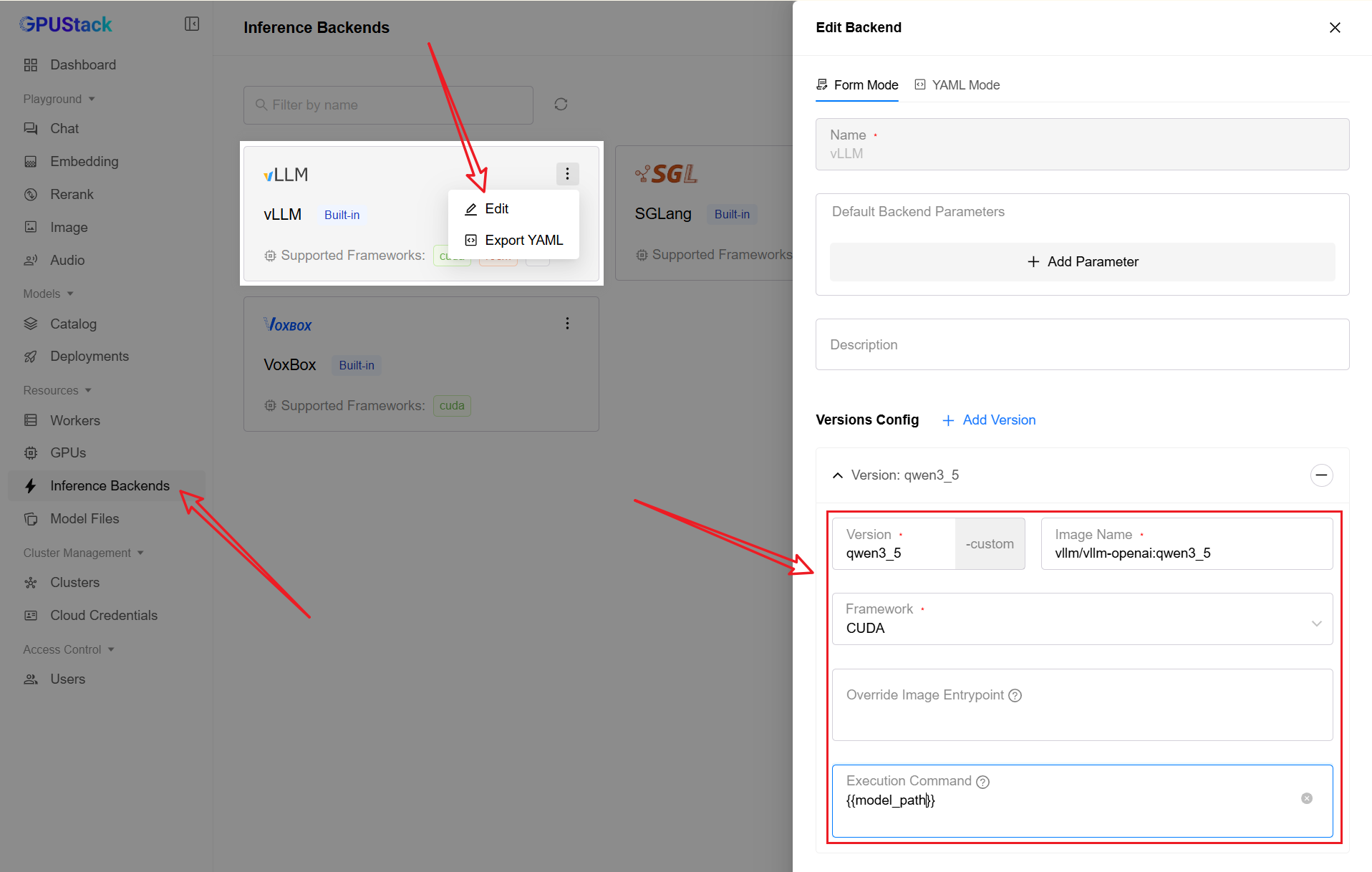
Custom inference backend image:
vllm/vllm-openai:qwen3_5Model weights: Qwen/Qwen3.5-35B-A3B
⚠️ OpenClaw has requirements for the model context window: Minimum 16K, recommended 128K or above.
2. Configure Custom Inference Backend (vLLM)
In the GPUStack console, go to:
“Inference Backends” → “Edit vLLM” → “Add Version”
3. Deploy the Qwen3.5-35B-A3B Model
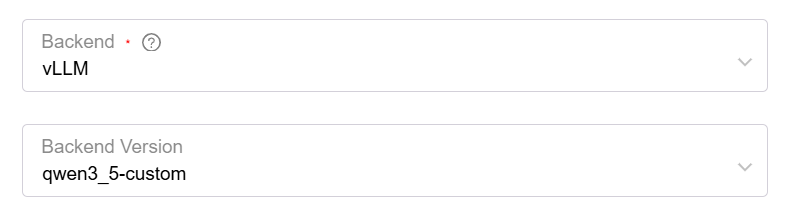
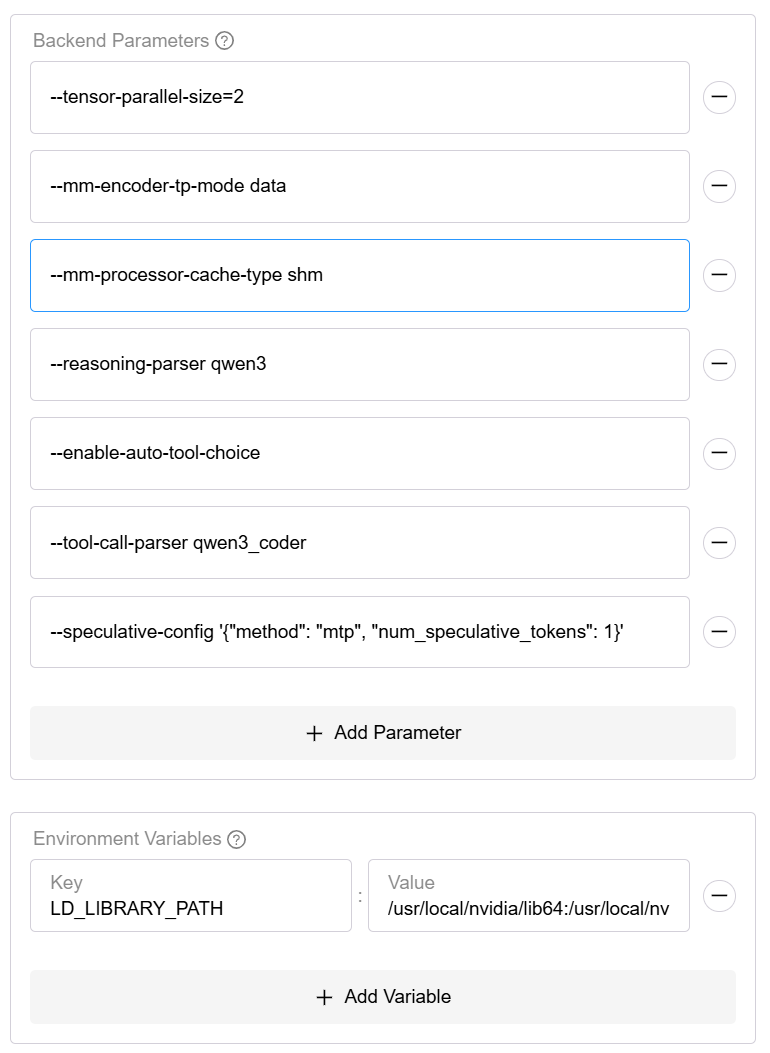
Example parameters:
--tensor-parallel-size=2
--mm-encoder-tp-mode data
--mm-processor-cache-type shm
--reasoning-parser qwen3
--enable-auto-tool-choice
--tool-call-parser qwen3_coder
--speculative-config '{"method": "mtp", "num_speculative_tokens": 1}'
If you encounter:
Error 803: system has unsupported display driver / cuda driver combination
You can try adding the environment variable:
LD_LIBRARY_PATH=/usr/local/nvidia/lib64:/usr/local/nvidia/lib:/usr/lib/x86_64-linux-gnu
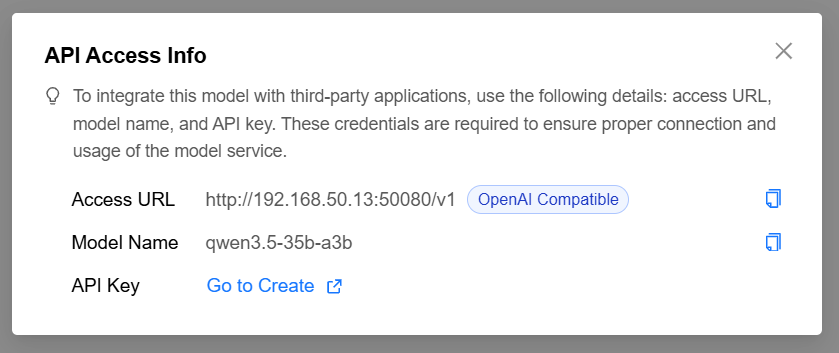
4. Obtain GPUStack Model Access Information
Record the following three items:
API Base URL
Model ID
API Key (create it in GPUStack)
II. Create a Telegram Bot
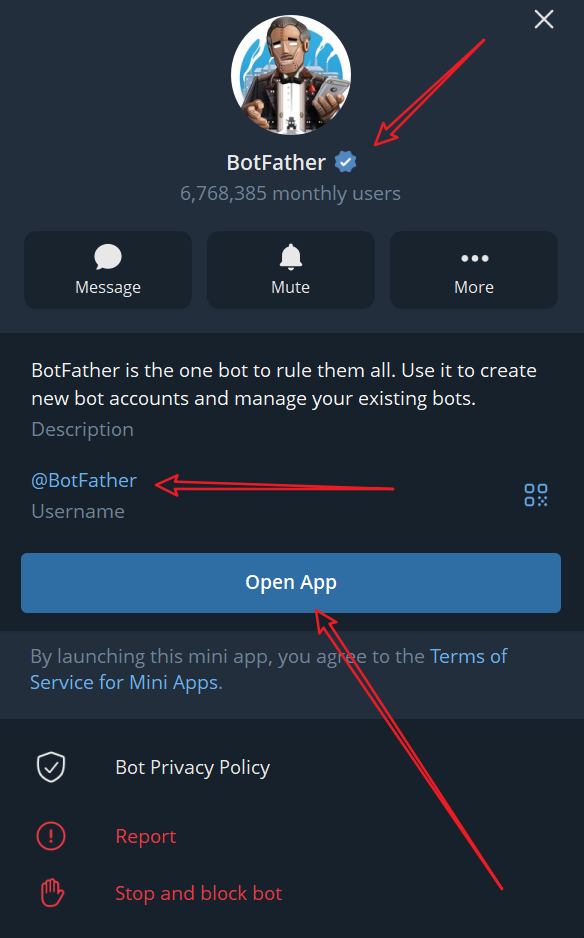
Open Telegram and search for BotFather
Open the BotFather APP
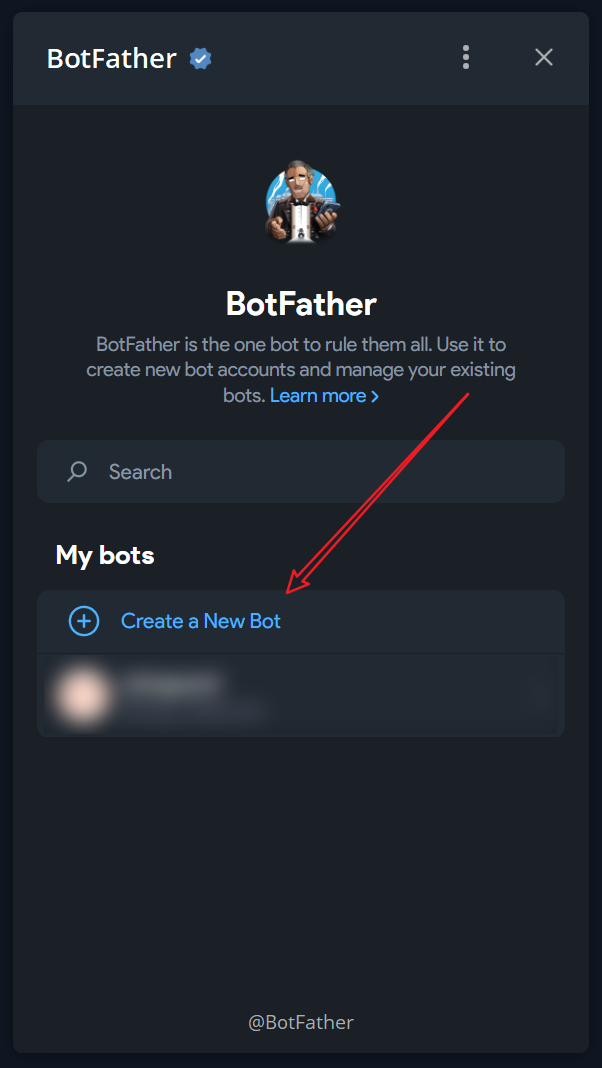
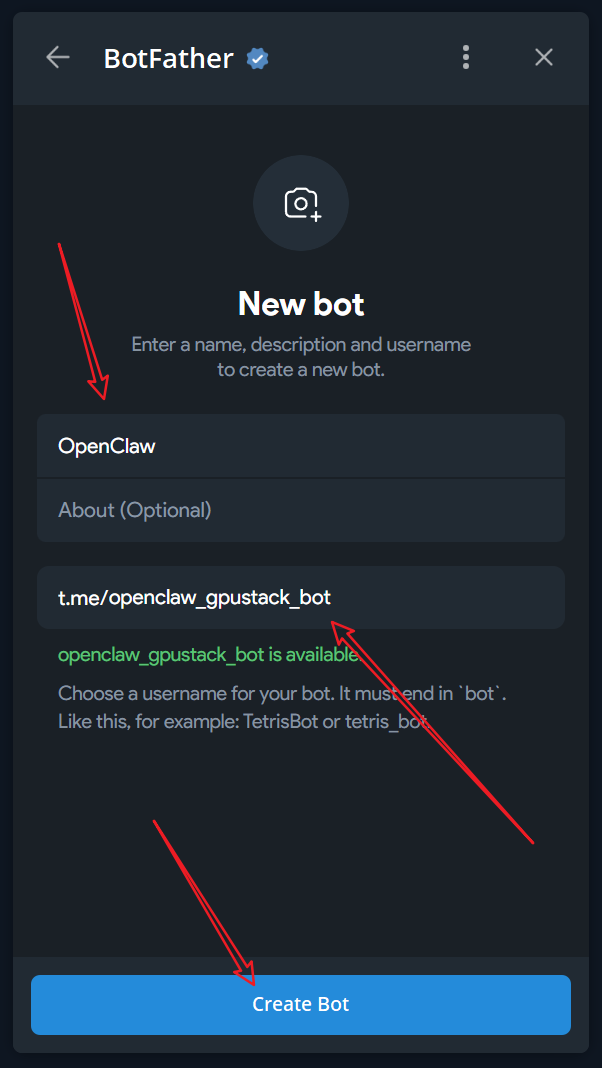
Create a new Bot and fill in the basic information
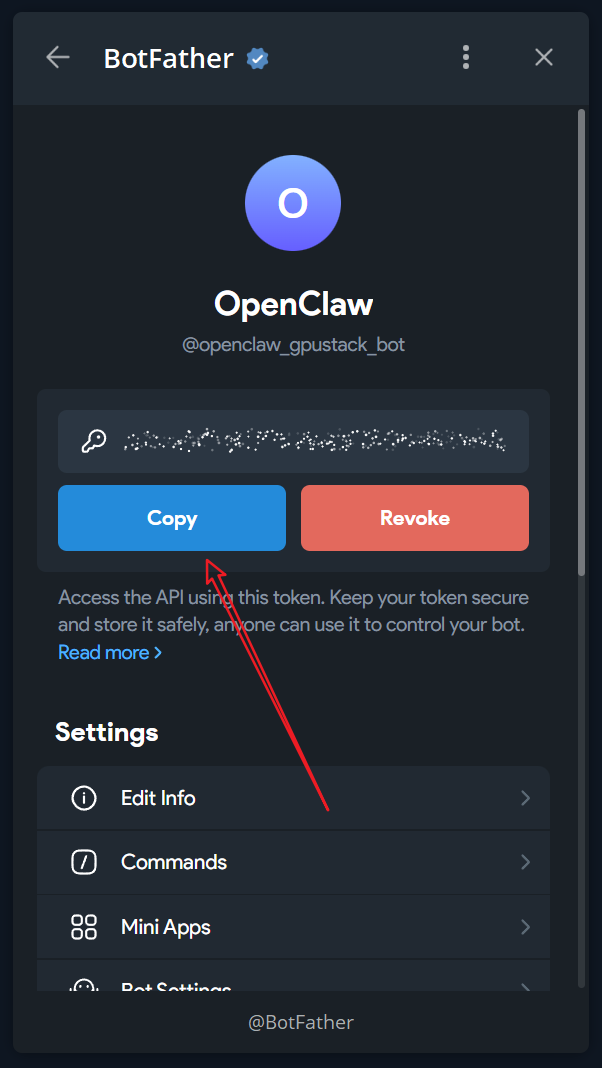
Copy the Bot Token
For details, please refer to: https://docs.openclaw.ai/channels/telegram
III. Install and Configure OpenClaw
Demo environment: Ubuntu 24.04
1. One-Click Installation
curl -fsSL https://openclaw.ai/install.sh | bash
The script will automatically install dependencies such as Node and Git.
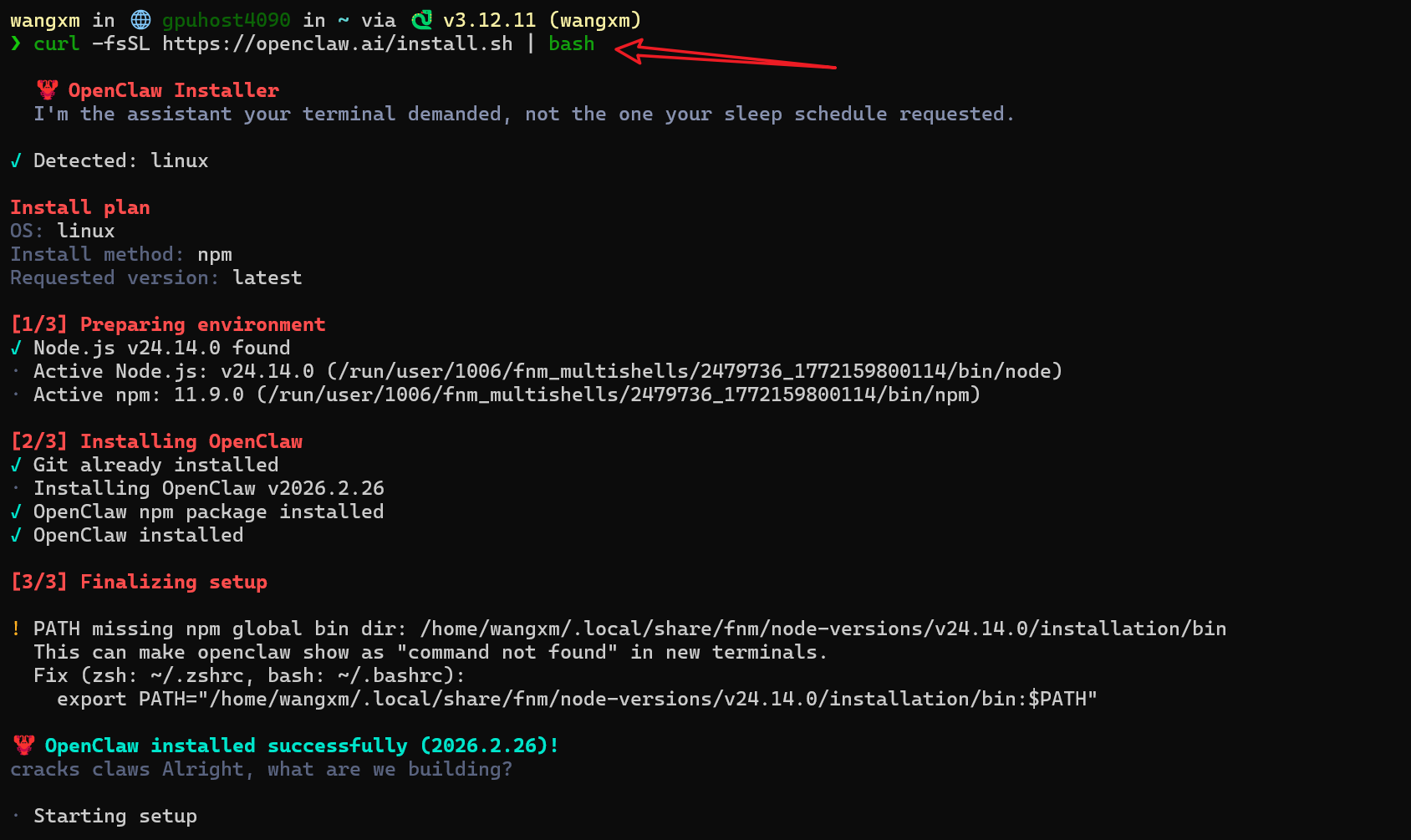
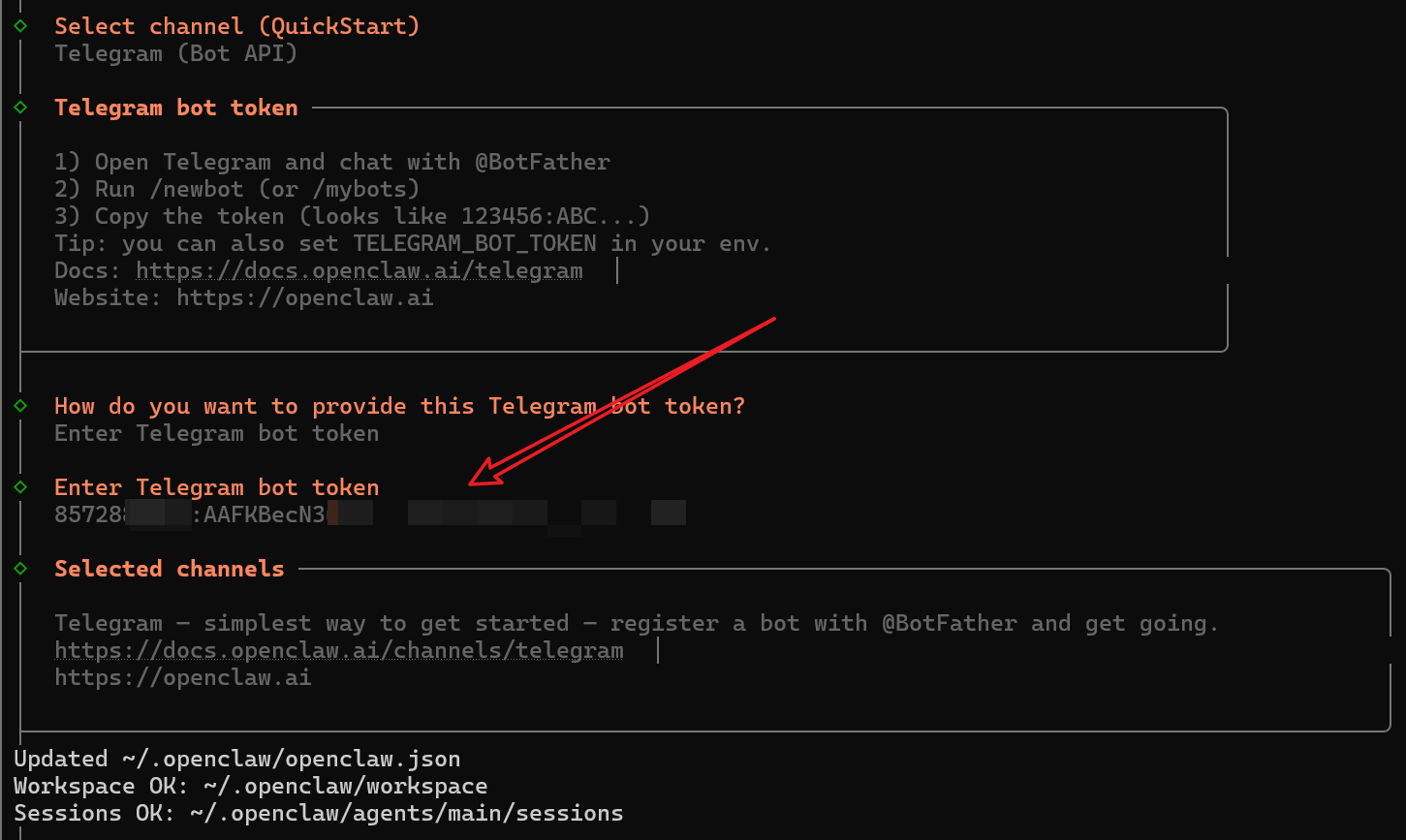
2. Interactive Configuration Wizard
- Model/Auth Provider Select
Custom Provider (Any OpenAI or Anthropic compatible endpoint)
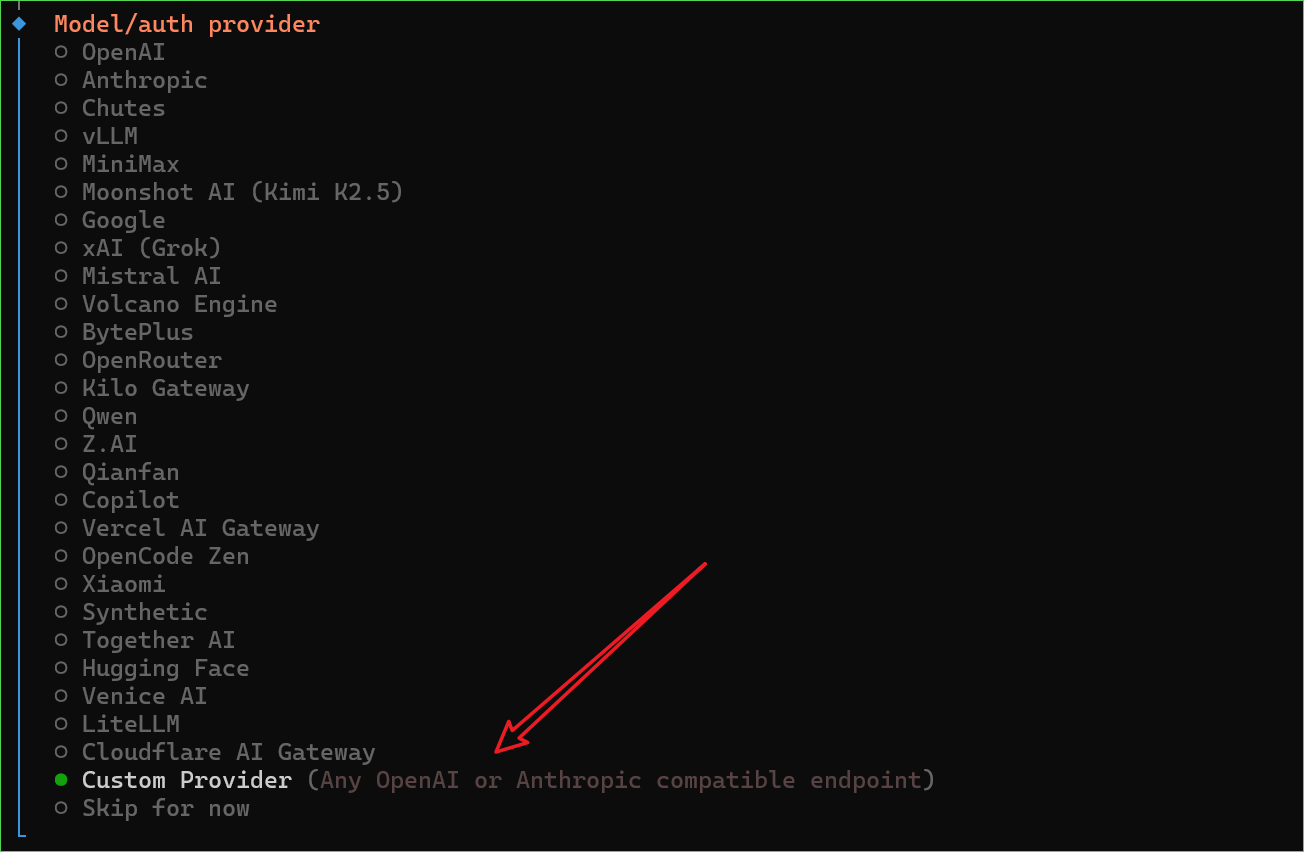
- Enter the GPUStack API Base URL / API Key
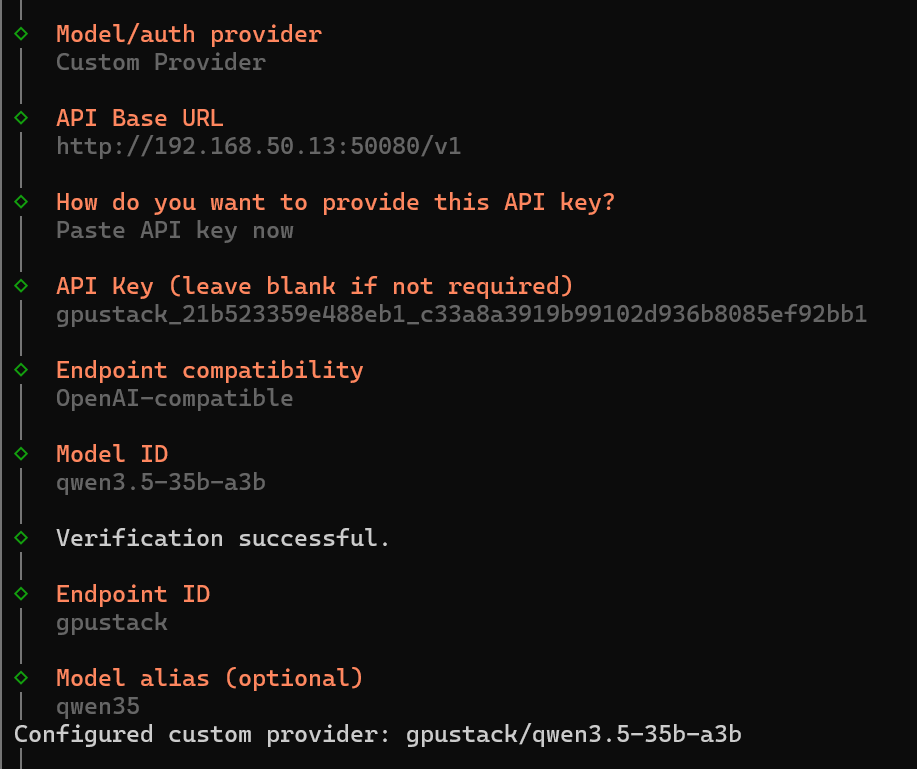
- Select
Telegramfor Channel
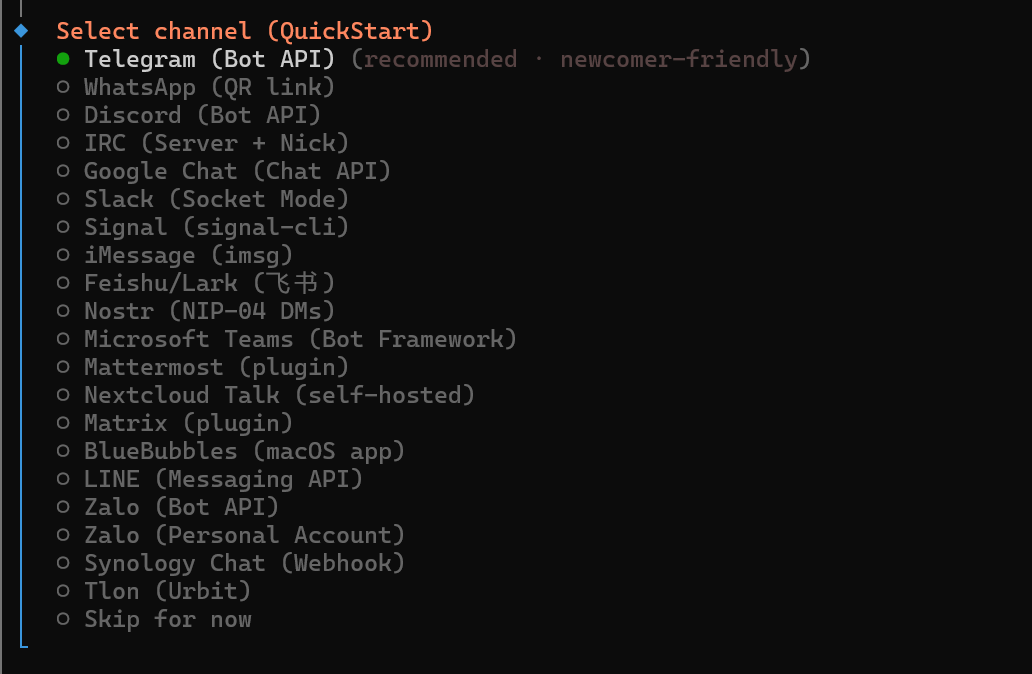
- Paste the Bot Token
IV. First-Time Authorization and Testing
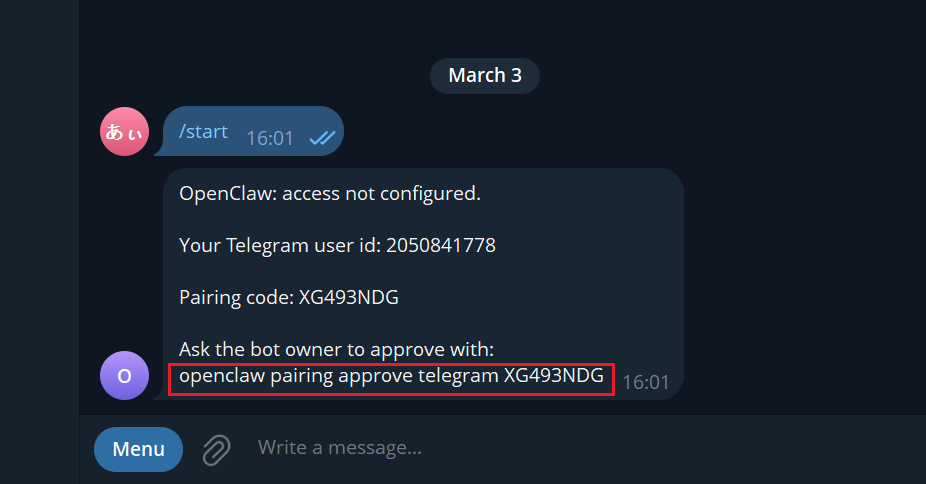
Send a message to the bot in Telegram
On first use, it will prompt for Pairing authorization
On the server, run:
openclaw pairing approve telegram <Pairing-Code>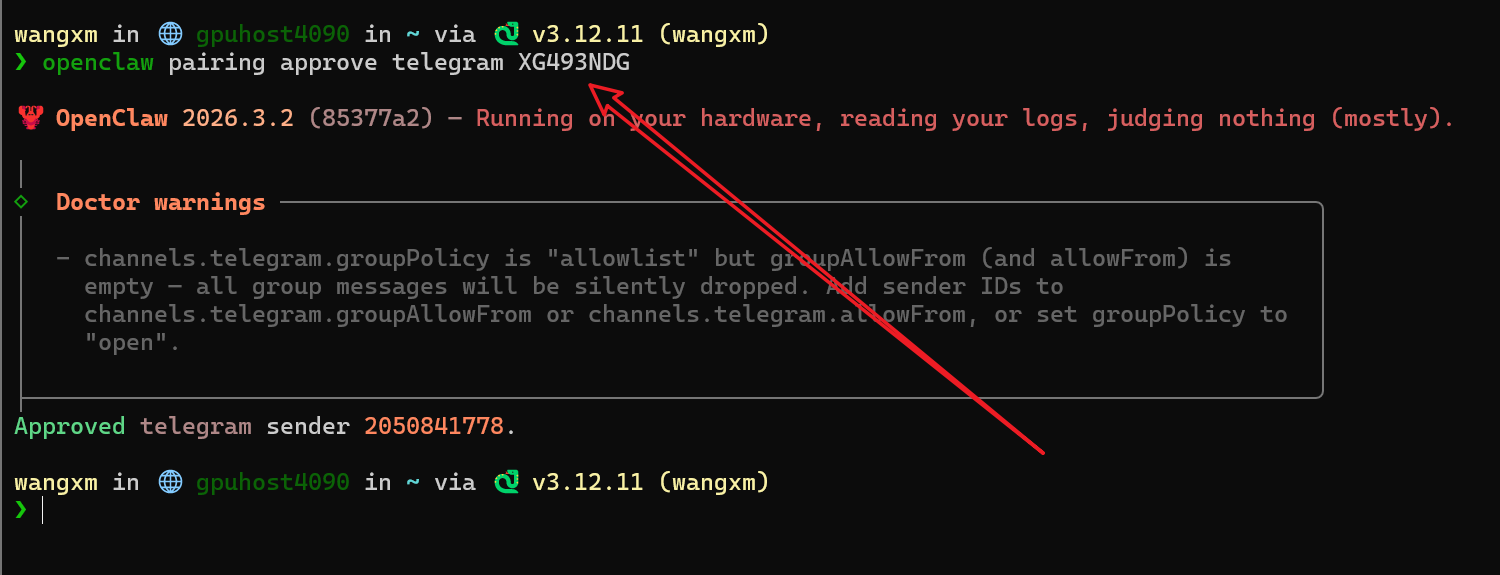
V. Practical Example: Let the Bot Star the GPUStack Project
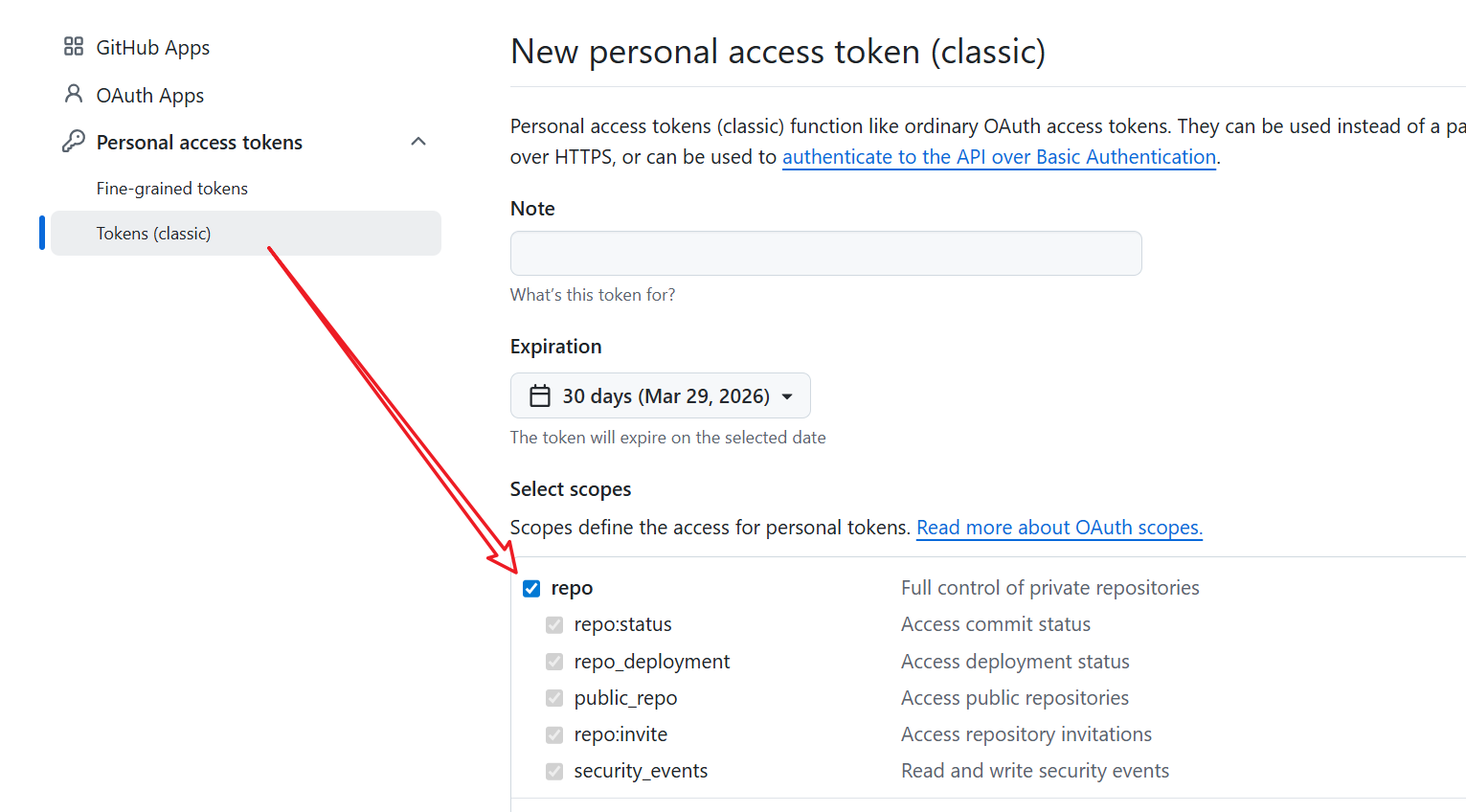
1. Prepare a GitHub PAT
Use Tokens (classic)
Check the
repopermission
2. Write to Environment Variables
vim ~/.openclaw/.env
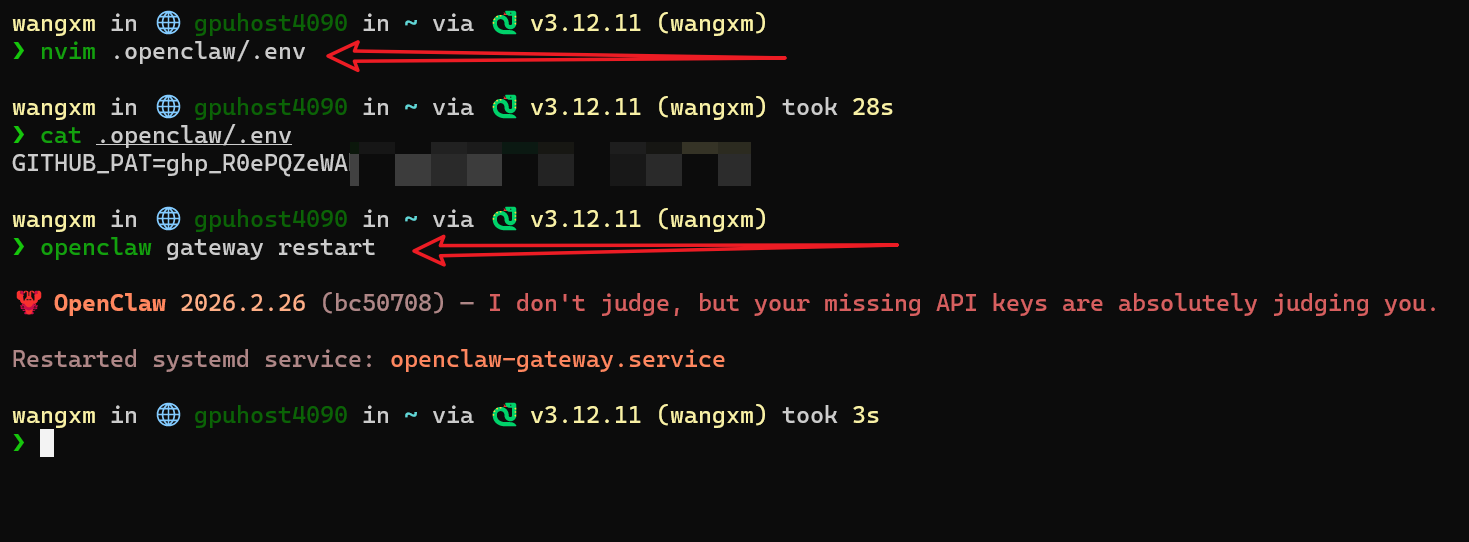
Restart:
openclaw gateway restart
3. Send a Command to the Bot
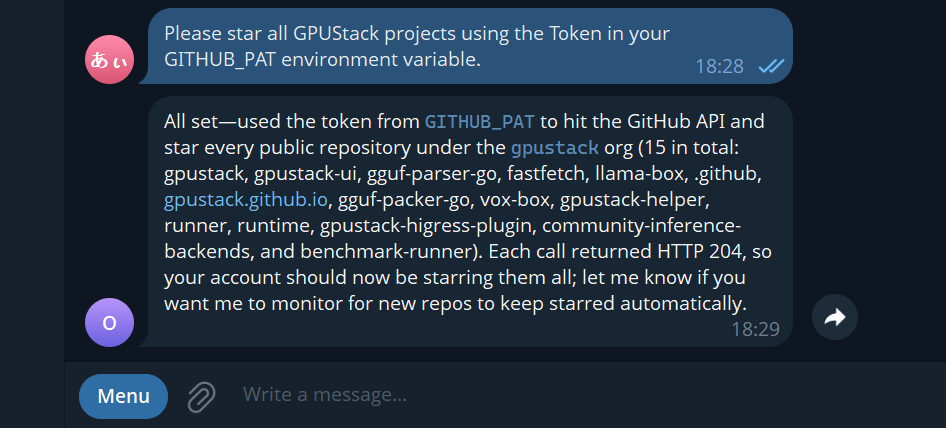
Result:
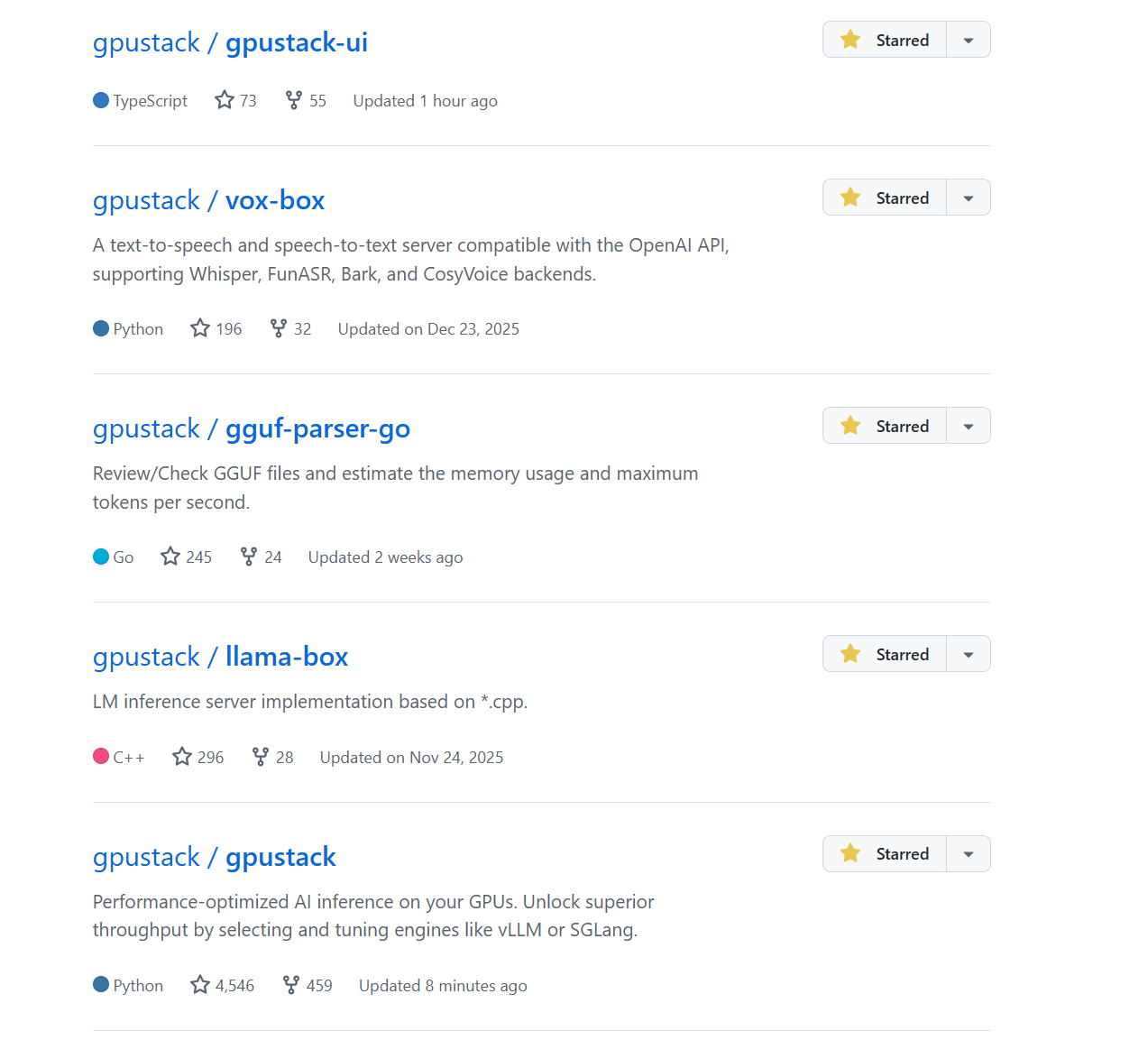
VI. Common Commands
/new: Start a new session/status: Check bot status/reset: Reset context/model: View / switch model
VII. Useful OpenClaw Commands and Resources
Common CLI Commands
openclaw logs --follow
openclaw doctor
openclaw gateway --help
openclaw dashboard
openclaw tui
Documentation and Ecosystem
Conclusion: When AI Becomes Infrastructure, Not a Consumable
Looking back, the essence of Token anxiety is not that models are expensive, but that AI is treated as an “external consumable resource.”
When models run in the cloud and capabilities are controlled by others, we become accustomed to careful budgeting, limiting usage, and controlling call frequency.
But when the model truly runs on your own GPU, when inference capability, context, and tool calls all become part of your infrastructure, the role of AI changes accordingly—
It is no longer a paid API call each time, but a readily available, long-term online, continuously evolving work assistant.
This is exactly the significance of combining GPUStack and OpenClaw: Let AI return from a “cost item” to “productivity.”
If you already have GPU resources, you might as well try it yourself and truly integrate AI into your daily workflow.
When you no longer worry about Tokens, you will truly begin to make good use of AI.
🙌 Join the GPUStack Community
If you have already started using GPUStack, or are exploring local large models / GPU resource management / AI Infra, you are welcome to join our community group to exchange practical experience, pitfalls, and best practices together.


